
To make ICQ work through SpoonProxy (Updated 6/8/99)
ICQ needs to make DNS resolutions on the client computer. This can be problematic if you are not running a DNS server on your internal network. However, you can resolve this problem by doing the following:
Step #1: Use the SpoonProxy Port Mapping Wizard to map DNS.
Basically this means mapping port 53 TCP and UDP both IN and OUT to the IP address of your primary DNS server (for your ISP.)
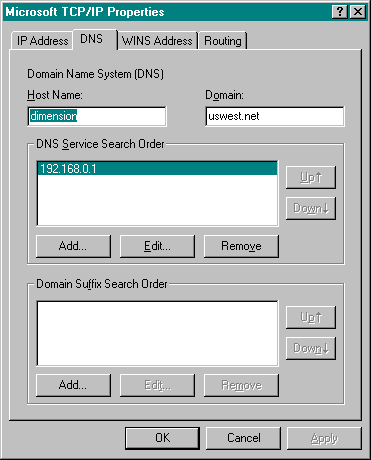
Step #2: you must ENABLE DNS for each workstations/client machines.
ENABLING DNS: (should be done in the workstations/client machines)
It should look something like the following screen capture:
Step #3: You may need to reboot your machine for the change to take effect.
On the other hand, if you ARE running a DNS Server on your internal network and your client machines are already set to use it, you should be able to connect normally without doing this mapping.
There is no additional SpoonProxy configuration necessary to make ICQ work. ICQ will work through SpoonProxy with SpoonProxy's default SOCKS settings.
(Please note that SOCKS support in SpoonProxy does expire after 30 days.)
ICQ configuration.
Under ICQ's Servers Tab, add servers starting with icq.mirabilis.com pointing to port 4000. Here is a screen shot:
Under Firewall settings specify SOCKS5.

Then specify the IP address of the machine SpoonProxy is running on for your SOCKS5 host. The SOCKS5 port is 1080.

ICQ should now function normally. If you have problems, please double check your DNS settings.